Getting started
Set up Auditer with your TallyPrime books
Six steps take you from sign-up to your own books on the web and your phone. You do most of them once; after that, the Auditer Agent keeps everything in step.
What you need
- A Windows PC (64-bit) with TallyPrime and an internet connection
- Your company open in TallyPrime on that PC while you set up
- A modern web browser for the web portal at app.auditer.com
- An Android phone or iPhone, if you want the app (optional)
- The Workspace Owner's mobile number on WhatsApp, for sign-in codes
- For GST, e-invoice and e-way bill features, your own portal API access
1 / 6
Create your account
- 10 free credits to start
- A demo company to explore until your own books arrive
- Verify your email to use email features
Read more
Sign up on the web portal at app.auditer.com or in the Android or iPhone app with your mobile number and the 6-digit code sent on WhatsApp. Then enter your name, a workspace name (usually your business name), your email and your language.
2 / 6
Install the Auditer Agent
- Free to download and use
- Windows, 64-bit
- Keep TallyPrime open with your company loaded
Read more
On the Windows PC that runs TallyPrime, download the Auditer Agent from auditer.com/download and install it. It runs beside TallyPrime and connects to it on the same PC.
3 / 6
Pair it with your workspace
- The PC and your phone need not share a Wi-Fi network
- One Tally PC per workspace
- A fresh code appears when one expires
Read more
The Agent shows a 6-digit pairing code, valid for 10 minutes. The Workspace Owner or an Admin enters it on the web portal under Settings, Tally Sync, or in the app under Settings, Tally ERP Sync.
4 / 6
Choose companies and years
- Add or remove companies at any time
- New financial years are added when you choose them
- After the first sync, only changes travel
Read more
In the Agent, add the companies open in TallyPrime and choose the financial years to sync. The first sync starts by itself; when it finishes, your own books replace the demo company.
5 / 6
Invite your team
- The Owner's seat is free
- Each other member: 100 credits a month
- Invitations expire after 48 hours
Read more
On the web portal, buy a seat for each member, then invite them by mobile number with a role and data access. Each person signs in to Auditer once before you invite them.
6 / 6
Set up reminders, GST and credits
- ₹1 per credit, plus 18% GST
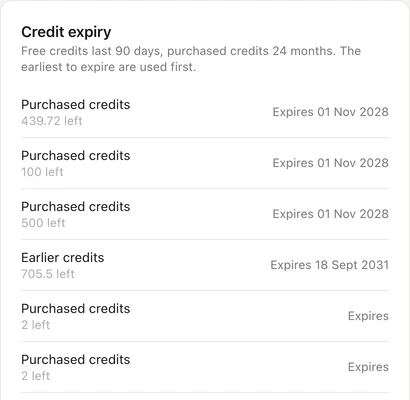
- Purchased credits are valid for 24 months
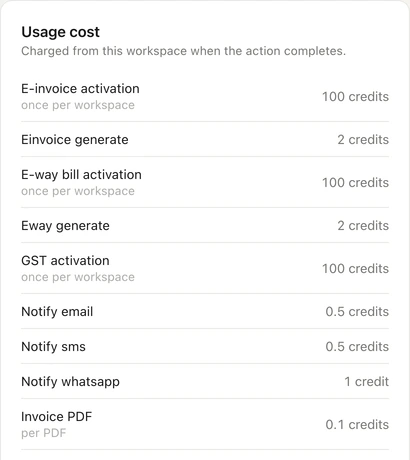
- GST returns, e-invoice and e-way bill: 100 credits each, once per company
Read more
Set payment reminder rules, connect GST and choose your e-invoice and e-way bill settings. When you need more credits, the Owner buys them on the web portal under Settings, Billing and Credits.
Frequently asked questions
To start with Auditer, create an account with your mobile number, install the Auditer Agent on the Windows PC that runs TallyPrime and pair it with your workspace using a 6-digit code. After the first sync, your companies appear on the web portal and in the apps, and you can invite your team. New accounts get 10 free credits, and viewing and syncing are always free.
How long does it take to set up Auditer?
Signing up and pairing take a few minutes. The first sync takes longer for larger Tally companies, and your books appear as soon as it finishes.
Can I try Auditer before connecting TallyPrime?
Yes. Sign up on the web portal or in the app and explore the demo company. To see your own books, install the Auditer Agent on the Windows PC that runs TallyPrime.
Do the Tally PC and my phone need the same Wi-Fi?
No. The Auditer Agent connects to the Auditer cloud over the internet, so the Tally PC and your phone never need to share a network.
Who can pair TallyPrime with an Auditer workspace?
The Workspace Owner or an Admin. They enter the 6-digit code shown in the Auditer Agent on the web portal or in the app; each code is valid for 10 minutes.
What can I do with the 10 free credits?
Credits pay for actions such as posting entries to TallyPrime at 0.10 credit each, so 10 credits cover up to 100 entries. Viewing, syncing and reports need no credits.
How do I buy Auditer credits?
The Workspace Owner buys credits on the web portal under Settings, Billing and Credits, and pays through Razorpay. ₹1 buys 1 credit, plus 18% GST, and purchased credits are valid for 24 months.